
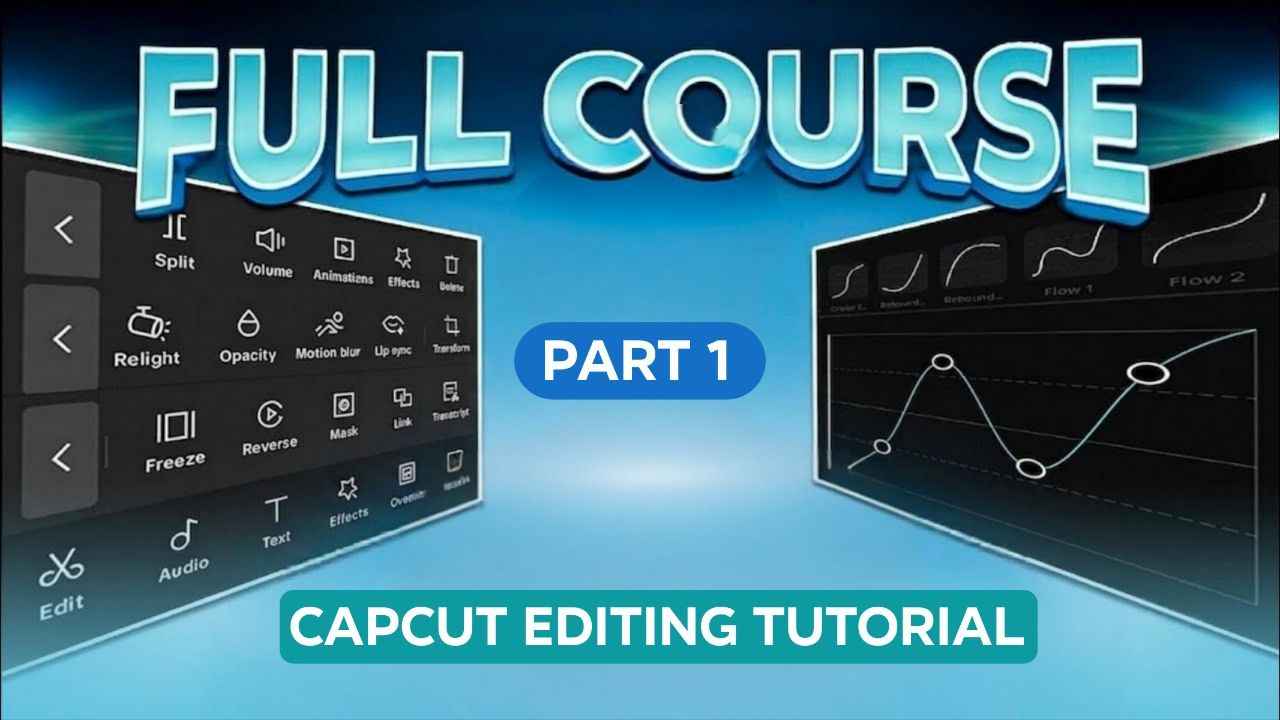
Maybe you know the basics of video editing or you don’t even know video editing, there is no problem. Just by watching this video patiently, you can edit good professional videos yourself, starting from simple blog editing. And in Capcut, this is going to be a basic to advanced course. Which are usually skipped in other blog videos. I will present these topics in this blog very simply. So that you can understand the topics very easily.
And the Capcut pro version download link is given, if you need it, click on the download text below and download it.
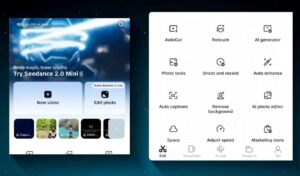
After coming to Capcut apps, I ignored all the options below for now. We will learn later. Just click on the plus icon. Our gallery of the videos we want to edit will be on here. We will select the videos from this gallery. After selecting the video, click on the add button here and our videos will be here. And here we can see three options mainly. First, the top option is called Preview. And here we can see what video we are editing here. Here the preview can be seen. And below is the Tools option. And the option in the middle is called Timeline. After bringing the video to edit, our first task is to select the aspect ratio from the toolbar and select our size first. In which size we want to edit the video. If you want, we can do it in any size, horizontal, vertical, one by one. Since we are sizing YouTube, we put YouTube or if we have any other size and we want to change its background. If we click on Background from here, we can also put any other color in the background of our video if we want. For example, my size is YouTube size. Now I am selecting a size that is usually the size of TikTok. If we want, we can change the color from here. Or if we don’t like the color, we can also select other images from the image option. We don’t like the end image either.
CAPCUT APK
We can blur it if we want. We can make the blur a little more or less. And if we click on Apply to All from the bottom, the background of each of the footages inside our timeline will be blurred. Now we don’t want to keep the blur. We just click on Nothing here. Then we selected our expectation. Here, we selected the regular size that YouTube has. Then, to edit the video files that we are bringing here, they will need to be cut from the front or from the middle. Right? Now we want to cut the video files from anywhere to cut from the front or from the middle. For example, we want to cut the front part from here. Now, if we click here and hold and bring the footage to the front, our video file is being cut from here. This is what was cut automatically. We just drag it and bring it forward a little bit. Or we can split it here if we want.
This is what we see if we click on the edit option from the bottom. This is our footage clicked. If we just click on split from the front of this footage. This front part has become separate. That is, if we click on the footage while the line that is along is still along. If we click on split here, this part will become separate. Now if we want to delete this, that is, if we want to delete this middle part, just click on the foot and hold it and click on delete [music], it will be deleted. I explain it very easily. Yes. Here, you see that if we move this line that is along a little forward. That is, from here, we want to delete the video up to here. I will click on split again. After clicking on split from the bottom, the file became separate. This separate part was deleted as soon as I clicked on delete. Now I am deleting this part by mistake. I was not supposed to delete this part. What should I do then? The undo option that we can see above, if we click on undo, the edit we made a little while ago will come back. That is, if you delete it by mistake, there is no need to panic. We can bring it back like this. So far we have been working in the main layer. Now if we want to put something on this video, we will click on overlay. After clicking on the overlay, our gallery will open again. We have selected anything. I have selected a YouTube logo here. Now if we want, we can merge our video footage and the image together. After clicking here, we will get many types of options. For example, from here, we can automatically remove the dark background or white background that we often have. Just click on the overlay, I will show you an example. Which has a white background. Here is a picture. Its background is white. Now if we click on the space and just click on dark. Here we show. Our white background has been completely removed very nicely and the black background can be removed from here very easily. Now you can do it from here as per your requirement. If you want, I am not doing anything from here, I just deleted it. Now we can animate the YouTube logo that we added in the overlay. Here, after clicking on Animation, we can animate In Animation, Out Animation and Combo Animation. Now, which one is In Animation? The animation that will be added first to our footage is called In Animation, like here, let’s click here. Here, see how our footage is coming. First, the way it is coming forward is called In Animation. Now, if we click on Animation, we can go to Out Animation.
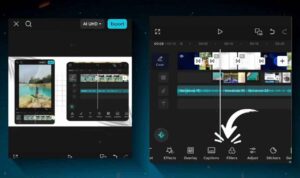
This is the out animation. That is, the way our footage will go is the out animation. This is what we show. This is the animation we select here. This is the way our footage goes from here, this is the out animation. And the combo animation that is there, this combo animation is in the entire video. That is, the combo that will be in the entire footage, that is, the animation that will be there is called combo animation. Now we are adding in animation and out animation here. You see, after adding in animation, it looks like this. We can add any type of animation if we want. Now I don’t need animation, for now I just selected the animations from here. Now if we want to give this footage an effect. For example, if you click on the effect option, you will click on video effect. Now from here there are many types of effects like glow effect, bladder effect, shake effect. We can select the blood effect. Now if we click on Dynamic Glow, we will see a glow effect coming. Or we can search for the effect. We may need any type of effect. So we can search for that type of effect and give the effect of our choice here. Now let’s assume that we need to crop a little from this footage. That is, cut it. Now if we click on the side a little. After clicking on the side, we can see the crop option here. Now from the crop portion, we can cut as much as we want. So, if we need to cut, if we cut from here, it will be cut automatically. Since we don’t want to cut, now I clicked on this miss. Because we don’t want to cut here or we need to have this logo for this long.
Then we split the rest of this part. We want to add a different logo here or add a different footage here. If we want to replace that footage, we can replace the thing that will be in our overlay. If we click on the replace option a little to the side, if we want to put something else here. Here, we brought a watermelon here. Here, you see, a watermelon has now come in place of our YouTube logo. If we bring it here, it came out very nicely. Or we want to double this footage of ours. That is, we want to double the watermelon here. I want to put it on the top side as well. But I will explain to you one by one and we have to implement these in our edit. If we want to double this, the duplicate option given here is if we click on the duplicate option, this is doubled and if we want these layers, we can move them around here, just click and hold and move them to the right and left, then they will move to the right and left, and if we want to click on the upper layers, we can also move them to the right and left, we can take them wherever we want, now it depends on how we want to edit this.
Capcut pro for android
The option after the overlay is sound, that is, audio. After clicking on this audio option, many options will come here. If we click on audio, we can see many options here. The first option is extract. From here, we can convert video to audio if we want. If we select any video. After selecting this, we click on extract audio. The audio that was in our video is converted and comes here. If I play it a little, the audio of my video is coming here. I always like to watch web series the most. Well, this is my audio, I deleted it. I don’t need it. Now if we click on sounds. After clicking on sounds, we will see many options here. Here, many sounds will be recommended to you. If you want, you can add sound from here, you can add music. But I would prefer you not to use them. Because these are maximums with copyright. Copyright free or maximums. So it is better to use no. The next option here is the file option. This file option will basically contain the audio that we are converting, that is, the audios that we are converting from the video, these are saved here. For example, my iconic background music is this, this is it. Okay. Then the next option that will come here is the device. If you click on the device, basically the audios that are inside our device, that is, I am recording on my mobile or I have any audio songs here or audio sound effects, anything or I am recording something with my mobile, you will basically get them here. And if you have recorded something with your mobile, you will rename it for any video so that you can search and find it very easily.






Cricket
87
Prakash nayak2000
Nageshwar Kumar
Mere ko Kota video banana hai
Cap cat