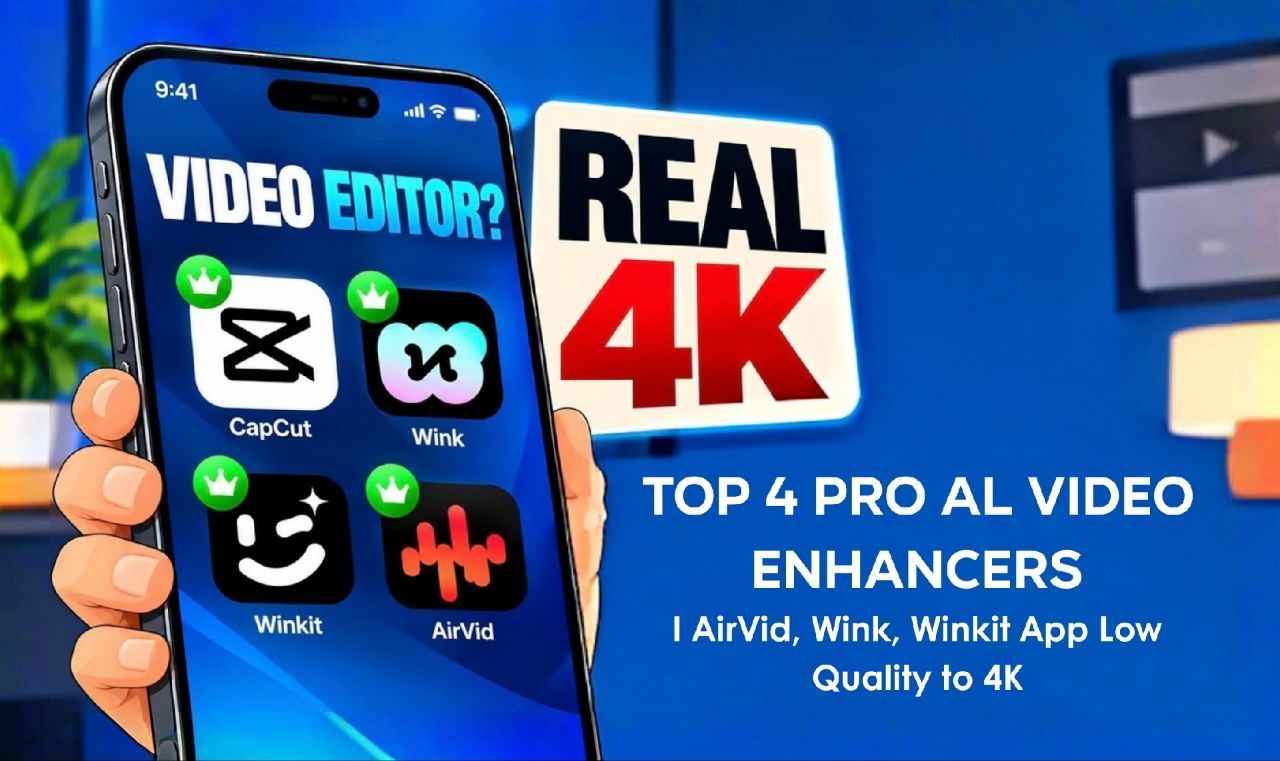
Today, I will introduce Top 4 pro Ai video enhancers that can elevate your low-quality footage to a pristine 4K Ultra HD standard. But first, does this sound familiar: your video looks crisp in your phone’s gallery, yet once you upload it to Instagram, Facebook, or YouTube, it turns completely blurry and pixelated? This isn’t actually the fault of your phone or your internet connection; 99% of editors make a major mistake during the export process. They force a standard 720p or 1080p video to render in 4K without using any AI-powered tools. Social media platforms detect these as “fake” or artificially upscaled files and apply such aggressive compression that, instead of improving, the quality ends up looking completely flat. So, stop these “fake” 4K exports immediately. The four professional AI video enhancement tools I’ll share today will process your footage frame-by-frame, transforming it into genuine 4K. This ensures that no matter how much compression the platform applies, your video will remain super sharp even after it’s uploaded.
Top 4 Pro Al Video Enhancers
So, let’s start with our first application, U Tool, which delivers quite good results especially if you find that your video quality drops after uploading it to social media. This app includes several tools such as AI Scale, AI Cut Out, AI Expand, and AI Remover. For our purpose, we’ll use the “AI Enhance” feature. It offers options to upscale videos to 2K and 4K; when I tested the 4K setting, the output was very sharp. While there wasn’t a noticeable change in visual quality aside from a slight shift in color the video was successfully resized from 720p to 4K. This prepares the video for upload without any additional compression. That said, since the improvement in quality isn’t significant, I wouldn’t personally recommend it for this specific use; however, you might still find its other trending features quite useful. Next, let’s look at another application called Vunket. Honestly, it’s quite popular and truly impressive. It offers a wide range of features, including Super Resolution, Magic Eraser, AI Removal, AI Retouch, Denoise, AI Expand, Night View, and Stabilization.
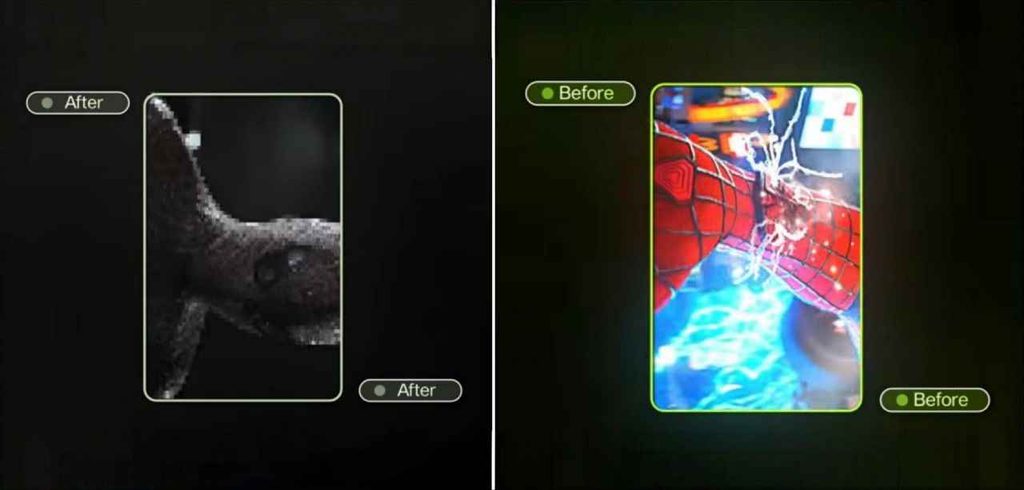
The primary feature for which we use this app is AI restoration, which delivers a very noticeable transformation. Once you upload your video, you will see options like Classic, Ultra HD, UHD Pro, Portrait, and AI. We will focus on the AI tool, which automatically analyzes the video and produces excellent results. You can further refine the output by adjusting specific settings, such as denoising. The difference between the ‘before’ and ‘after’ versions is so striking that it is clearly visible even on a small mobile screen. This is a powerful app, so it is definitely worth trying out. The next application is Wink which has been popular among well-known content creators for some time. Sometimes, such apps cannot be found by searching directly in the Play Store; however, I can guide you to a safe and official source. The app offers various tools, including HD, Ultra HD, and Portrait modes its AI/UHD feature is truly remarkable. One potential issue is that you might encounter network errors while using it, in which case you may need to use a VPN. Once connected to a VPN, simply open the app, tap ‘New Project,’ select your video, navigate to the UHD option, and click ‘Start.’ This will instantly upscale your video to 4K. You could call it a proper 4K enhancer.
So, today I’ve shared four applications that can take the quality of your videos to the next level. You can find official, secure links for all these apps—along with additional tips on how to use them on my website, Capcutpro.me You’ll also find the latest video editing updates related to CapCut there. So, do remember to drop by my website from time to time; I hope you’ll discover and learn something new